Adventure
A NEW WORLD FOR MAC GAMINGYour Mac’s
Your Mac’s
other life.
Clock out. Drop in. A home for your Mac and Windows games, with the runtime included.
Dreamed up for Apple Silicon.Made for the off-hours.
YOUR CO-OP PARTNERHi. I’m Piko.Give me a tap. ↗
CHOOSE YOUR ESCAPENo Man’s Sky
01THE WORLDS ARE WAITINGPick your next
Pick your next
obsession.
A cozy night. An epic quest. One more run.
Find a world that feels like you.
Cozy
Action
Puzzle
Exploration
RPG
A LIBRARY CONCEPT. NOT A COMPATIBILITY LIST.
Game purchases are separate. These examples are not verified compatibility results.
02MAKE YOURSELF AT HOMEAll your worlds.
All your worlds.
One happy place.
Explore the original launcher concept.
Click around. Make a little room for play.
GOOD EVENING, PLAYER ONE
APPLE SILICONWhere to tonight?
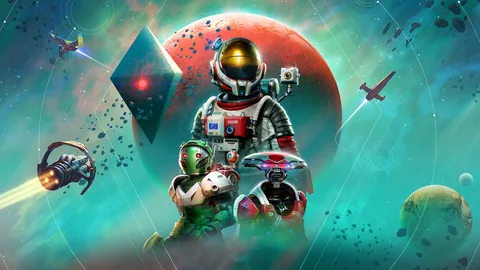
YOUR NEXT SIDE QUEST
No Man’s Sky
There’s always another world.
01 / 04
A little something for every moodAll worlds
A LITTLE MORE PLAY. A LOT LESS TINKERING.LAUNCHER CONCEPT / NOT A DOWNLOADABLE APP
03THE GAME PLANLess setup.
Less setup.
More side quests.
Your Mac is already a work machine.
Let’s give it an off-duty life.
01 / BRING YOUR WORLDS
Already yours.
All together.


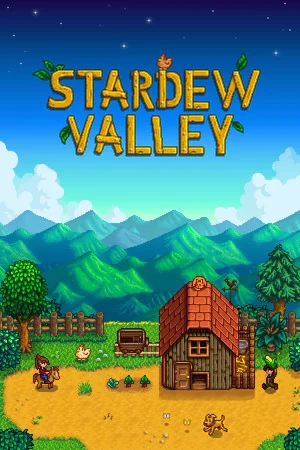
A home for the games you own, with Steam, Epic Games and GOG Galaxy. Compatibility varies by game.
02 / SKIP THE HOMEWORK
We do the fiddly bits.
You do the fun bits.
INSTALL RECIPE / CONCEPT
Compatibility runtime01
Mac-specific settings02
Your next adventure↗
Tested recipes and sensible settings. That’s the experience we’re working toward.
03 / MAKE ROOM FOR PLAY
Just.
One.
More.

One place to discover, keep and launch your next adventure. A whole new evening.
GOOD GAMES. HONEST EXPECTATIONS.Small library.
Small library.
Big confidence.
Our goal: games tested on real Macs, clear compatibility notes, and settings that make sense. If it’s a maybe, we’ll say it’s a maybe.
Know before you playTHE COMPATIBILITY PLAN
Tested on MacReady, once we’ve verified it.
A few quirksWe’ll tell you exactly what they are.
~Not supported yetNo guesswork. No wasted download.
—Planned labels. These are not current test results.
GOOD QUESTIONSBefore you
Before you
press start.
The practical stuff, minus the fine-print energy.
01Can I download Pikoroo now?
Yes. The free preview is available below, with Pikoroo and its runtime in one DMG. The first launch needs macOS approval. With automatic updates enabled, later releases are verified and installed when you quit after games and other work finish. The interactive launcher shown on this website is a concept preview.
02Will it play every Windows game?
No. Compatibility varies by game, renderer, macOS and hardware. Some anti-cheat systems and other requirements are unsupported. Check the evidence for your game before downloading it.
03Do I need to buy my games again?
You can add compatible games you already own. Games and store accounts are separate from Pikoroo, and purchases are not included.
04Can I use Epic Games and GOG?
Yes. Open Epic Games or GOG Galaxy in Pikoroo, install the store, sign in there, install a game in its default folder, then choose Play in Pikoroo. Required common Windows components are installed and repaired automatically. Home on Epic and Treasure Adventure Game on GOG were tested with input, saves and relaunch on an M2 Pro. Compatibility still varies by game; use the game's Quit menu to exit.
05Do I need CrossOver or Wine?
No separate installation is needed. Pikoroo bundles Wine, DXMT and DXVK, and automatically downloads, verifies and installs common .NET, DirectX, Visual C++ and shader components in managed Windows environments. Missing managed components are repaired before launch. First setup needs internet. Game and store compatibility still varies. Optional D3DMetal setup imports Apple's original package under Apple's terms.
06Which Macs can use the preview?
Apple silicon Macs with macOS 14 or later and Rosetta. Optional Apple graphics requires macOS 15 or later. Acceptance testing used an M2 Pro; individual games may need more memory or newer hardware.
07How much does Pikoroo cost?
This preview is free, with no subscription or signup required. Games remain separate purchases.
THE MAC PREVIEW IS HEREA little setup.
A little setup.
A lot to play.
Pikoroo and its Windows game runtime, in one download. Free to try. No signup needed.
Download for MacVersion 0.0.1 · Build 10 · 265 MB download · 713 MB installed
Apple silicon · macOS 14+ · Rosetta required
macOS approval on first launch
This preview is not notarized by Apple. Later updates are verified with the release signing key and install when you quit, after games and other work finish. Older manual previews need this download once to join the update channel.
Up and running in three steps.
- 1Download and copy
Open the DMG, then drag Pikoroo into Applications.
- 2Allow Pikoroo to open
Open Pikoroo from Applications. If macOS blocks it, go to System Settings → Privacy & Security → Open Anyway for Pikoroo, then confirm. Keep Gatekeeper enabled.
- 3Download or add a game
Open Steam, Epic Games or GOG Galaxy in Pikoroo to install the store, sign in, install a game and play. Use “Get games” for other downloads or “Add a game” for your own files. Common Windows components are prepared automatically; first setup needs internet. Follow Apple’s Rosetta prompt if it appears.
Optional Apple graphics & compatibility
Wine, DXMT and DXVK are included. For D3DMetal, open Engines → Apple graphics in Pikoroo, download the original package from Apple, review its terms, and import it. This optional component requires macOS 15+ and may require Apple sign-in. Apple’s terms limit its use to developing, testing or evaluating games on Apple hardware; importing it does not expand those rights.
Compatibility varies. The official Project Wingman demo was tested with DXMT and the En Garde demo with imported D3DMetal on an M2 Pro. This is not a test of every game, Mac model, or DirectX 12. Game purchases are separate.
Plain-text install instructions ↗